
How to Create a Bundle
Creating a legal bundle with BunTool is simple and takes just a few minutes. Follow this step-by-step guide to create professional, court-ready bundles.
Prepare Your Documents
You’ll need all your documents ready as PDFs on your computer (or whichever device you’re using).
You can save time by naming the files with their dates and document names, for example 1 October 2026 Particulars of Claim.pdf or Claim Form 01-10-2026. BunTool can pick up on most date formats, so don’t worry about the exact date style.
How many volumes do you need?
It’s usually best not to make bundles more than 50-100MB in file size, or more than about 600 pages long. BunTool will warn you for large file sizes, but the choice is up to you (though there is hard limit of 500MB).
If you have more than this, consider making two volumes. In a simple case, all the documents for a hearing can fit into one bundle, but it’s common for trials to have many different bundles, especially in complex cases. These can be grouped into themes, like A: Statements of Case and B: Evidence for example.
Click ‘Create Bundle’ and Enter Bundle Details
On the Create Bundle page, start by entering your bundle information:
- Bundle Title: e.g., “Trial Bundle” or “Application Bundle”
- Claim Number: The court reference number
- Case Name: e.g., “Smith v Jones”
If the bundle contains sensitive information, click the confidential box. A “Confidential” notice will be added to the first page and the filename.
Choose your Documents and Review the Index
Click “Choose PDF documents” to select the files you want to include. Your documents stay on your computer—they are never uploaded anywhere.
BunTool will automatically extract dates from filenames where possible and suggest document titles, and create a template index for you to review and edit before the bundle is created. You can:
- Reorder documents: Drag documents up or down to change the order
- Edit titles: Titles will automatically be taken from the filename you saved the document with at first, but you can click on any title to edit it.
- Add dates: Edit document dates if needed using the date picker
- Section breaks: Optionally add section markers to group related documents together
You can also add sections, dividing your documents into divisions within the index, and allowing page numbering to be restarted within each section.
Create Bundle
Click “Create Bundle” and wait a few seconds while BunTool processes everything on your device. When complete, your browser will open the finished PDF bundle.
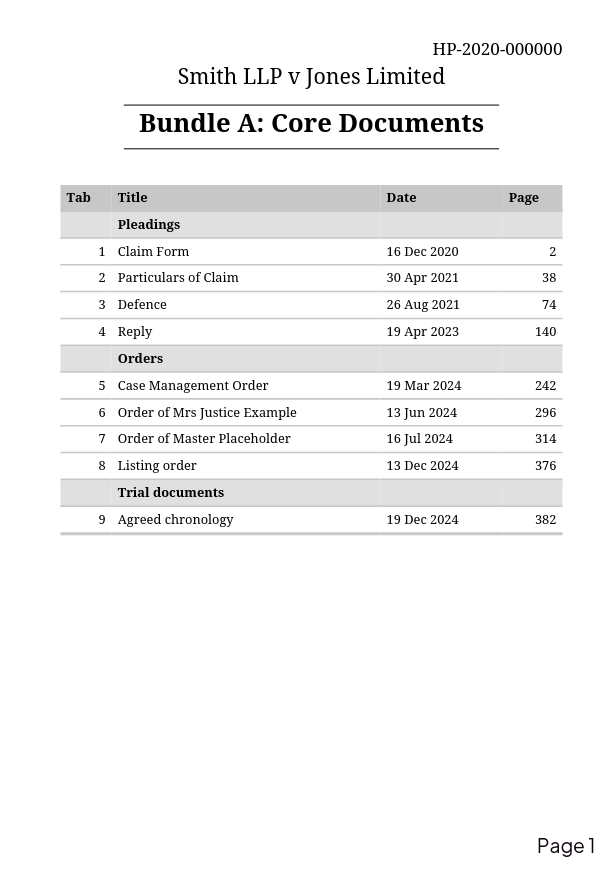
BunTool will create a professional-quality frontmatter index for you, and it’ll also organise page numbering, bookmarks and hyperlinks.
Advanced settings
If you want more control or aren’t happy with the default settings, click “Advanced Settings” before creating the bundle. You can customise:
- Font style: Sans Serif (Arial style), Roman Serif (Times style), Monospaced (Typewriter-style), or Charter (Traditional English style)
- Date format: Different date styles (Abbreviated, British, American, etc)
- Page numbering: Various options. You can also add a prefix to each page number if you like e.g “Bundle A Page 1” instead of just “Page 1”
- Printability: By default, BunTool will ensure that all documents start on a right-hand page, inserting blank pages if needed; this means that if you print your bundle then section dividers with tabs can placed between them. You can disable this if you prefer.